

Products
Solutions
Ecosystems
Resources
Partners
How to change password in Windows & Mac
Windows
- Ensure you are connected to the MSTR Employee Wi-Fi network when working onsite. If you are using any other network, please connect to the VPN before proceeding.
- On your computer, press Ctrl + Alt + Del.
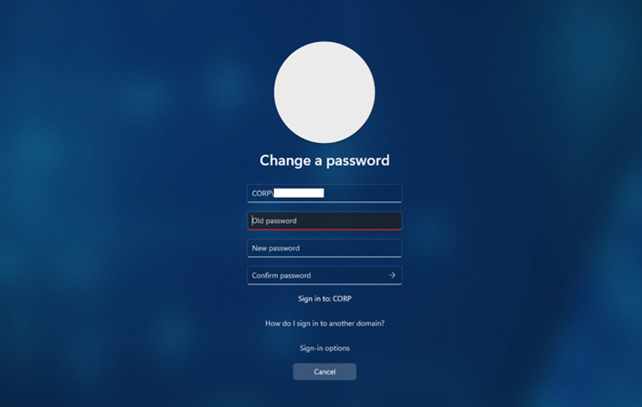
- Select Change a password from the menu.

- Enter your current password, then enter your new password twice when prompted.
- Lock your computer by pressing Windows Key + L.
- Log back in using your new password.
- Remain connected to the VPN for at least 10 minutes to ensure your password syncs properly.
Mac
- Ensure you are connected to the MSTR Employee Wi-Fi network when working onsite. If you are using any other network, please connect to the VPN before proceeding.
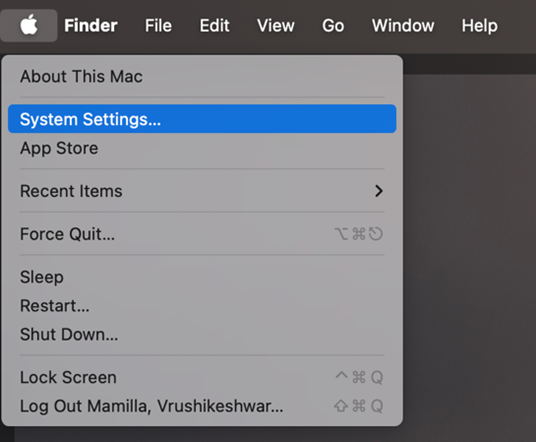
- Open System Settings on your Mac.
- Navigate to Users & Groups.
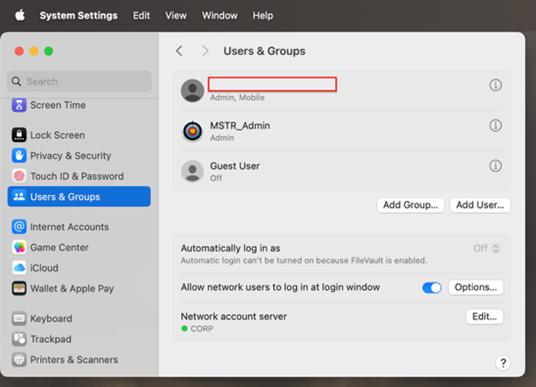
- Click the information (i) icon next to your account.
- Select Change Password.
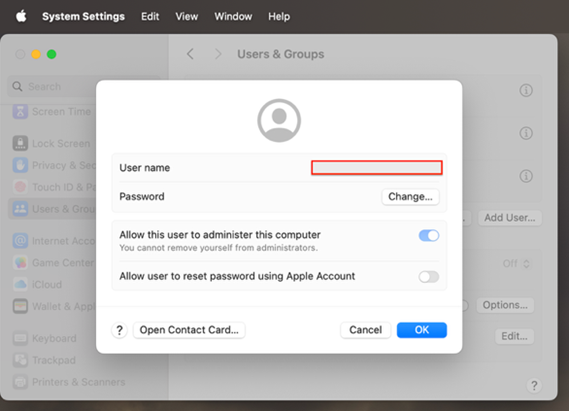
- When prompted, enter your current password, then enter your new password twice.
- Remain connected to the VPN for at least 10 minutes to ensure that your password syncs successfully.
Account unlock process through O365
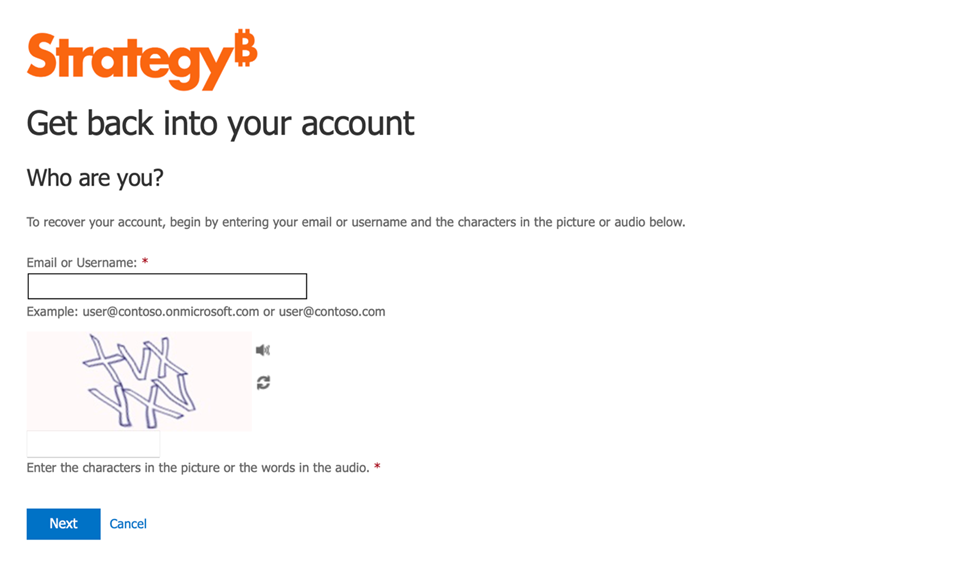
1. Navigate to passwordreset.microsoftonline.com, enter your corporate email address (username does not work) and type in the characters in the picture, then click on "Next" button.
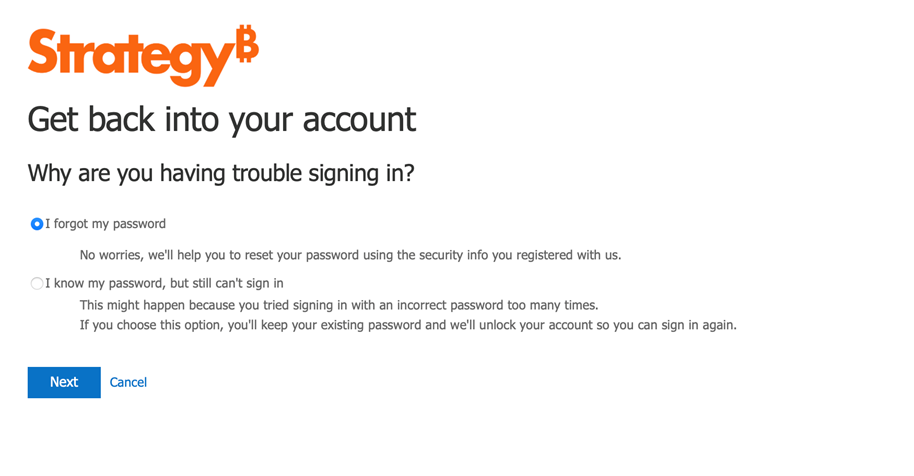
2. Select the option “I know my password, but still can’t sign in”, then click on "Next" button.
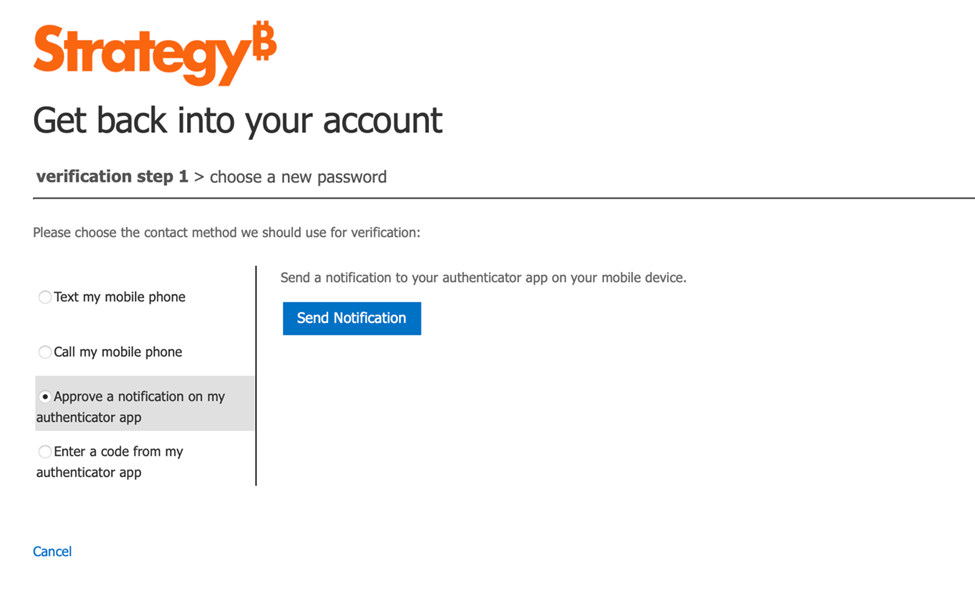
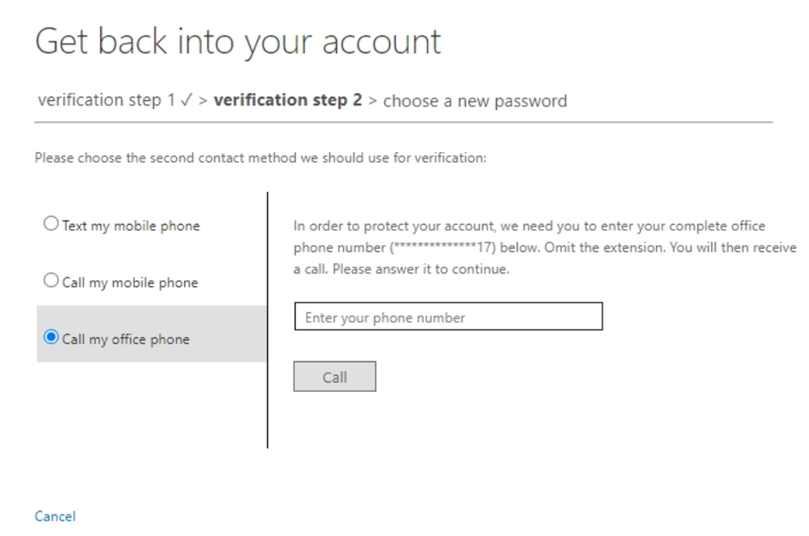
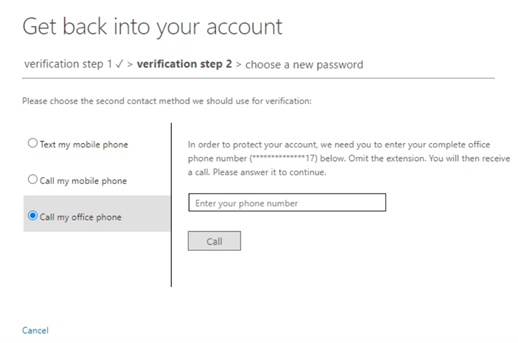
3. Open the Microsoft Authenticator application (MFA) on your mobile device and provide the verification code, or any other method you have set up, then click on "Next" button. Please note you may need to do a second verification step, depending on your account setup.
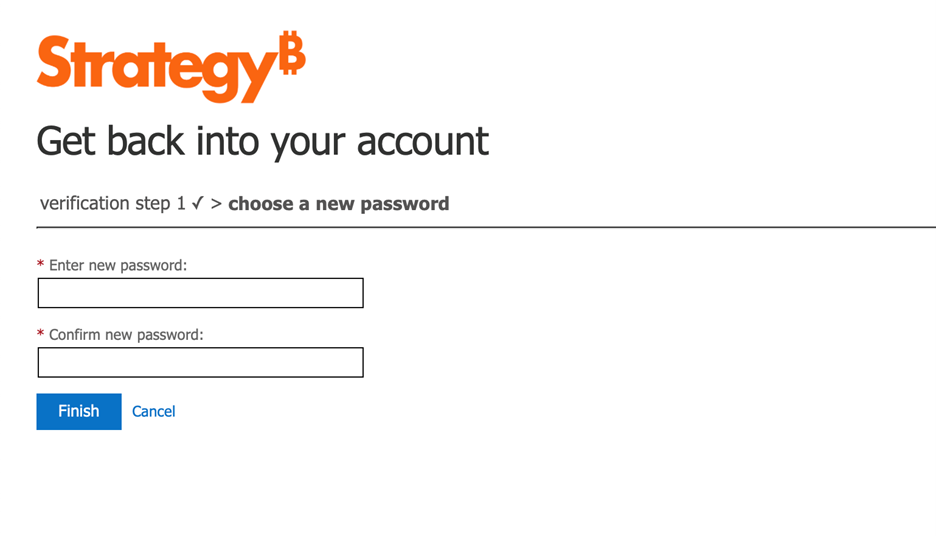
4. Provide a new password twice, then click "Finish" button.
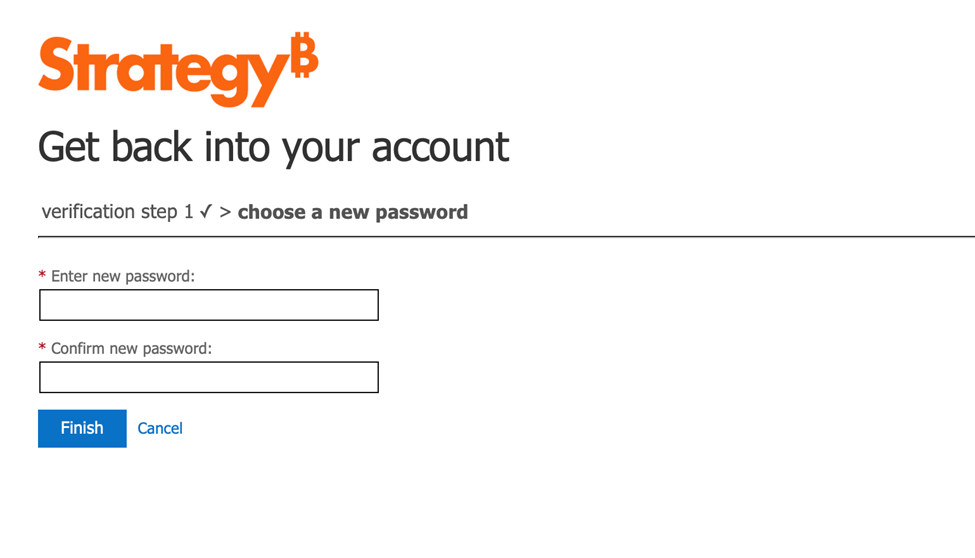
5. Your new password has been now set.

Password reset process through O365
1. Navigate to passwordreset.microsoftonline.com, enter your corporate email address (username does not work) and type in the characters in the picture, then click on "Next" button.
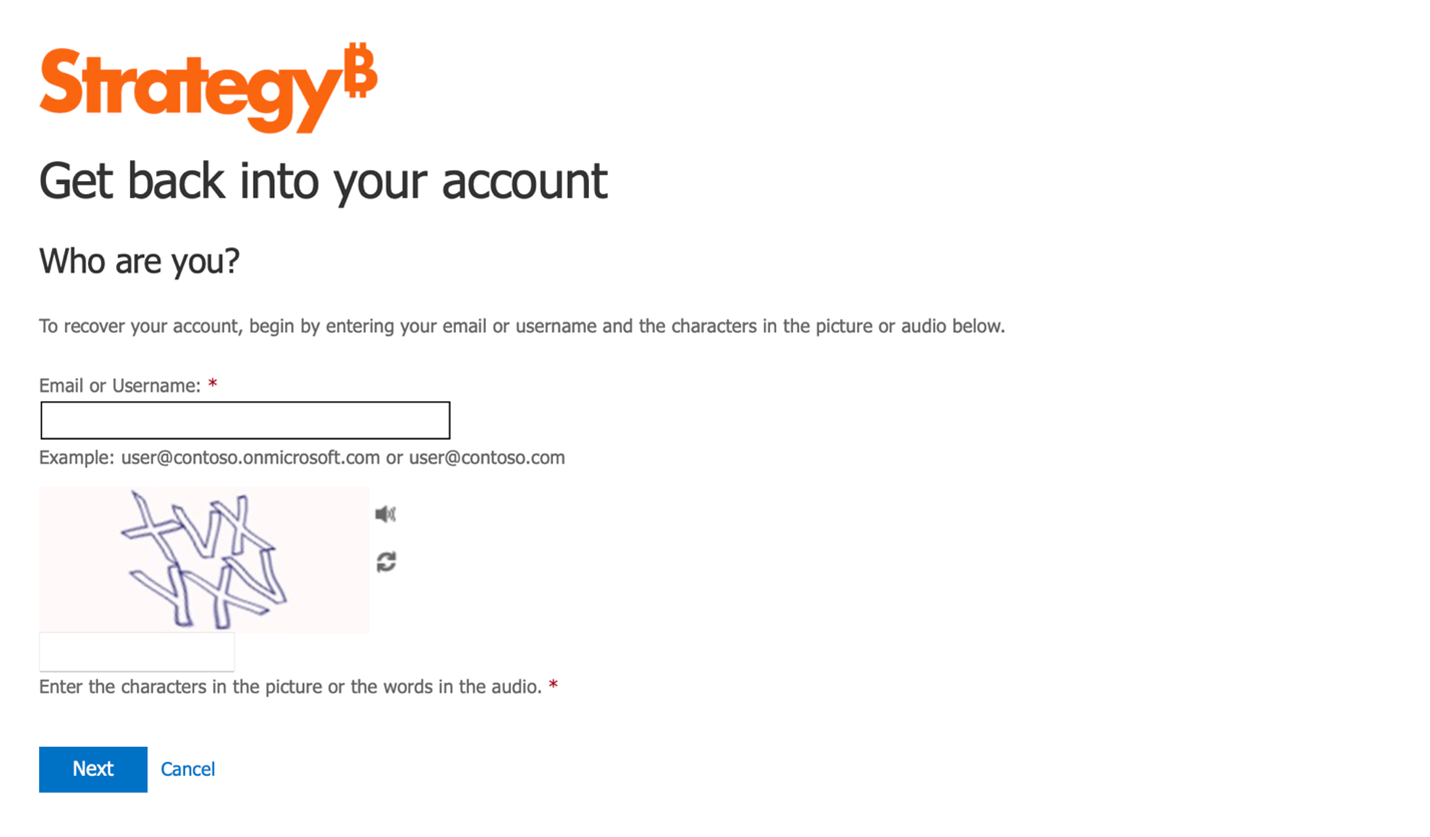
2. Select the option “I forgot my password”, then click on "Next" button.
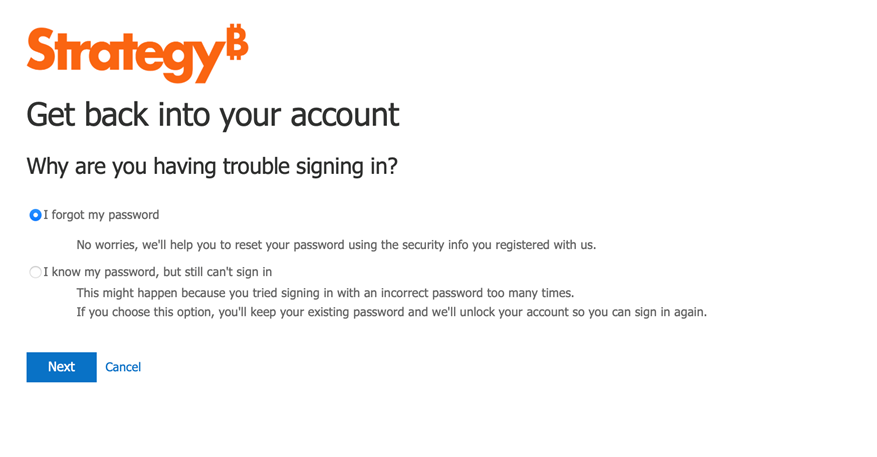
3. Open the Microsoft Authenticator application (MFA) on your mobile device and provide the verification code, or any other method you have set up, then click on "Next" button. Please note you may need to do a second verification step, depending on your account setup.
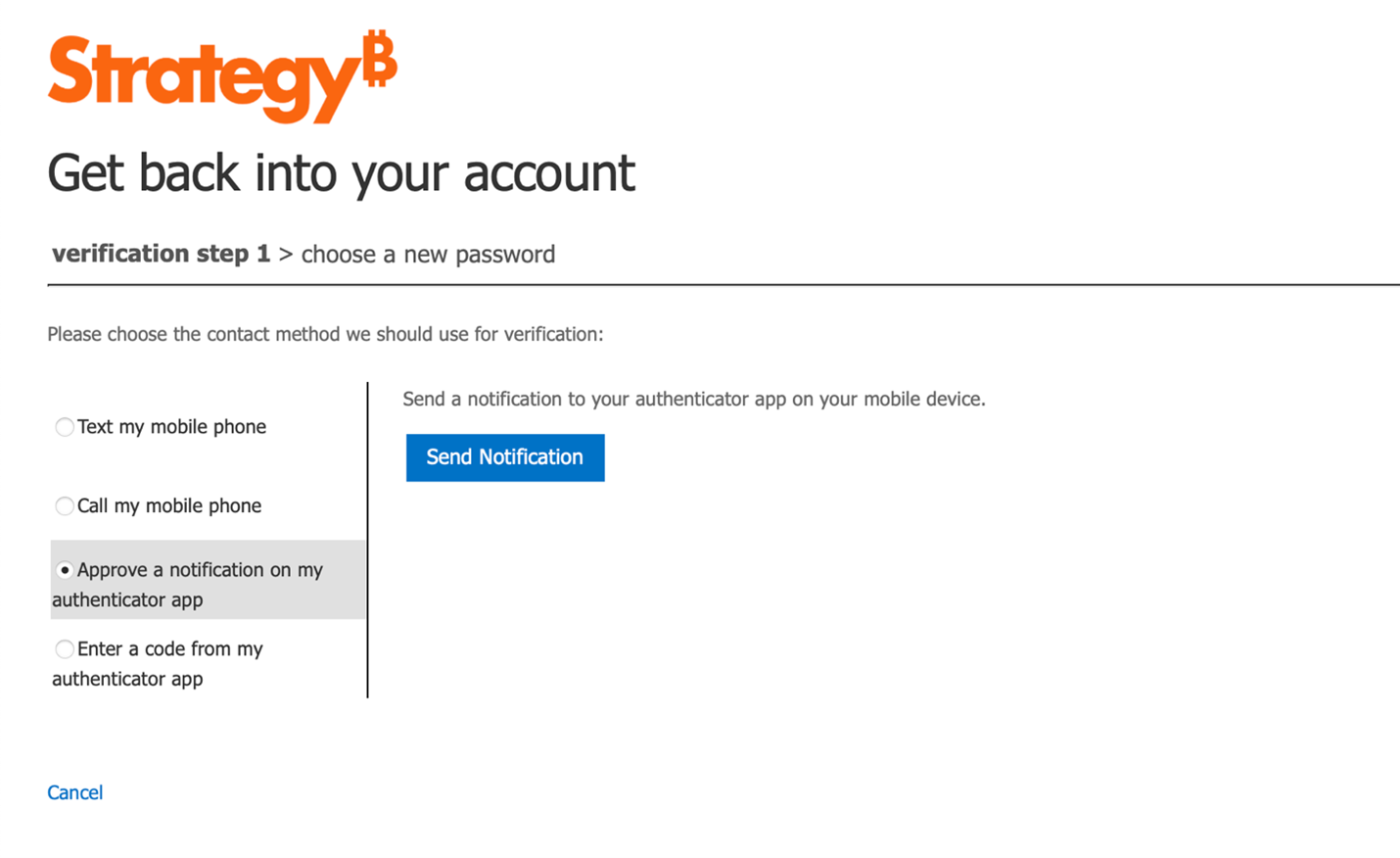
4. Provide a new password twice, then click "Finish" button.
5. Your new password has been now set.